
CPU/GPU Bottleneck: What It Is, How to Check It and How to Fix It (2026 Guide)
You bought a powerful graphics card, launched your favorite game, and the FPS is nowhere near what the reviews promised. The game stutters, yet your GPU is barely breaking a sweat. Sound familiar? You are most likely dealing with a CPU GPU bottleneck, one of the most common performance problems in PC gaming.
So, what is bottleneck in PC terms, and what can you do about it? In this guide we explain it in plain language, show you how to check it with a bottleneck checker or by hand (laptops included), and walk through how to fix it without wasting money.
What Is a CPU GPU Bottleneck? (Bottleneck in a PC Explained)
A bottle has a narrow neck, so no matter how much water is inside, it only pours out at one speed. Your PC works the same way. The CPU, GPU, RAM and storage all work together, and the slowest part sets the pace for the whole system.
Here is an example. Say you pair an old budget CPU with a brand-new powerful GPU. The CPU cannot prepare game data fast enough, so the GPU waits around doing nothing. You paid for GPU power, but the CPU is holding it back. That is a classic CPU GPU bottleneck.
One important point: a bottleneck is not a fault or hardware damage. Every PC has a slowest part. It only becomes a problem when the gap between parts is large.
CPU Bottleneck vs GPU Bottleneck: What Is the Difference?
| Factor | CPU bottleneck | GPU bottleneck |
|---|---|---|
| What it means | The CPU cannot feed data to the GPU fast enough | The GPU is fully busy rendering graphics |
| GPU usage | Low (often below 70-85%) | 95-100% |
| CPU usage | One or a few cores near 100% | Normal or low |
| Most common when | Low resolution (1080p), high FPS, esports games | High resolution (1440p/4K), ultra settings |
| Typical fix | Tune settings, upgrade CPU or RAM | Lower settings or upgrade the GPU |
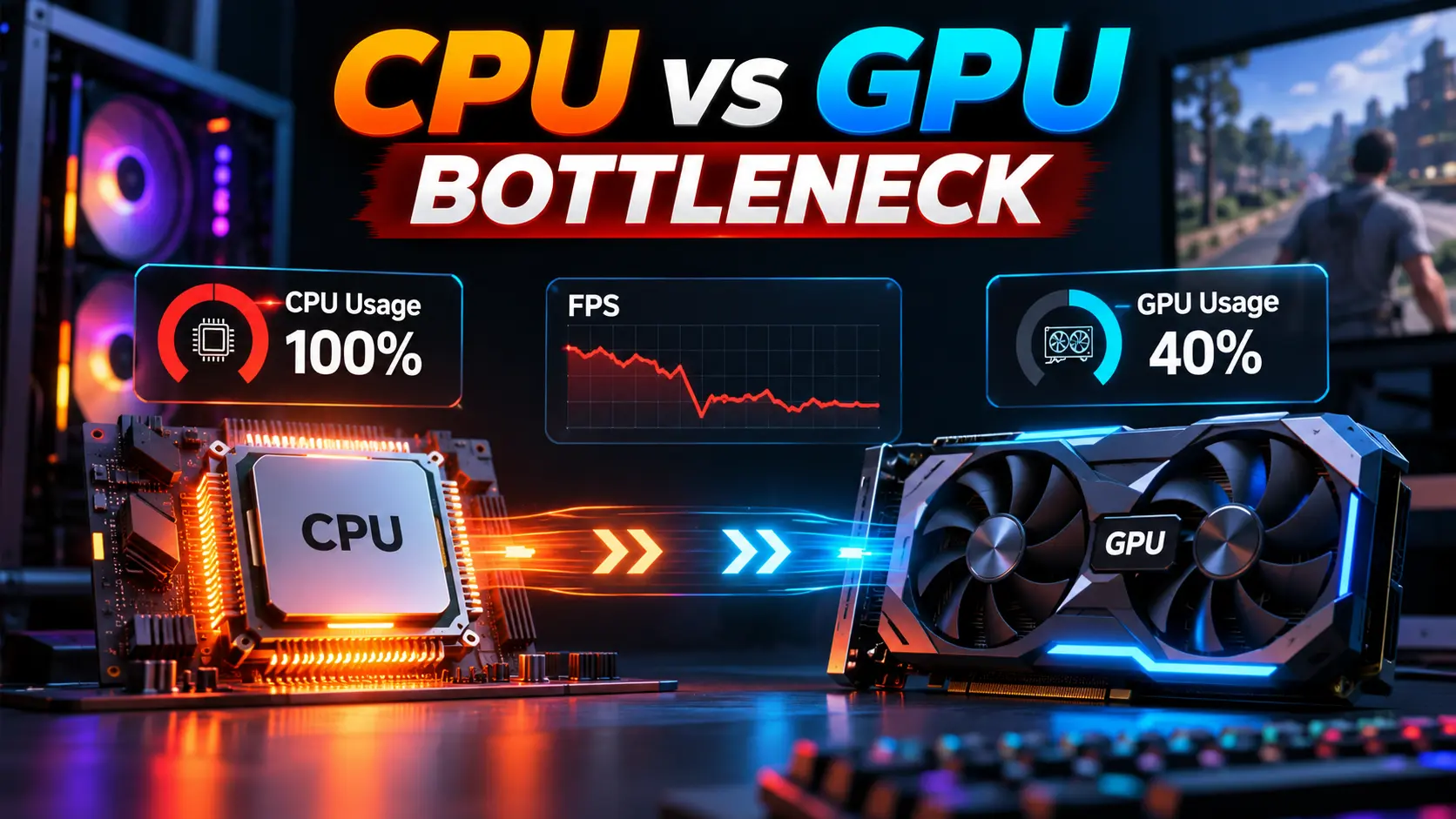
Here is the good news: a GPU bottleneck is usually fine. If your graphics card is at 100%, you are getting what you paid for. The real problem is a CPU bottleneck, where an expensive GPU runs at half its potential.
Signs of a Graphics Card Bottleneck (and CPU Limits)
You can often spot a CPU GPU bottleneck without any software:
- GPU usage stays well below 100% in games, even on high settings.
- FPS drops suddenly in crowded scenes or large open areas.
- You get stutter or micro-freezes even when the average FPS looks fine.
- Lowering graphics settings barely changes your FPS.
- Raising the resolution costs very little FPS (a classic sign of a CPU limit).
How to Check for a CPU GPU Bottleneck
There are two ways: a quick online estimate, and a more accurate test in the game itself.
Method 1: Use a bottleneck checker or bottleneck tester
This is the fastest option. You pick your CPU, GPU and resolution, and the tool estimates which part is holding the others back. Our PC Bottleneck Calculator does this in about a minute.
Whether you search for a CPU bottleneck calculator or a GPU bottleneck calculator, remember that these tools give an estimate, not a final verdict. Results change with the game and your settings, so treat them as a starting point.
Want to know if a specific game will run well on your hardware? Try the free Can I Run This Game? checker on GamingDon. You pick your GPU, CPU and RAM, choose from 94 games at 720p to 4K, and it flags your weakest component. It works in your browser with no download or account.
Method 2: Test it yourself while gaming (most accurate)
- Install a monitoring tool. MSI Afterburner works well, or use Windows Task Manager (Performance tab), which also shows GPU usage.
- Launch your most demanding game and play for 5-10 minutes.
- Check GPU usage. At 95-100%, the GPU is the limit, which is perfectly healthy.
- If GPU usage is low, look at the CPU. If one core is close to 100%, you have a CPU bottleneck.
- Raise the resolution and test again. If FPS barely changes, the CPU is the one holding you back.
How to Check a CPU GPU Bottleneck on a Laptop
Many people search for a bottleneck calculator for laptop or want to check bottleneck on a laptop, since laptop parts usually cannot be swapped. Laptops also have their own causes of bottlenecks:
- Power mode: On battery, laptops slow down the CPU and GPU. Always game while plugged in and use a high-performance power mode.
- Thermal throttling: When the laptop gets too hot, it lowers clock speeds on its own. A cooling pad and clean vents make a real difference.
- Wrong GPU in use: Sometimes a game runs on the integrated graphics instead of the dedicated GPU. In Windows Graphics settings, set the game to use the high-performance GPU.
- Single-channel RAM: One RAM stick can limit performance. Two sticks in dual-channel mode are usually better.
Checking a CPU GPU bottleneck on a laptop works the same way: run a game, watch CPU and GPU usage in Task Manager, and follow the steps above. When selecting parts in any tool, always choose the exact laptop (mobile) model, because laptop chips often perform below desktop parts with similar names.
How to Fix a CPU GPU Bottleneck: 7 Methods
Start with the cheapest and easiest fixes, and move down the list only if you need to:
- Adjust resolution and graphics settings. For a CPU bottleneck, raise resolution or quality so more work shifts to the GPU. For a GPU bottleneck, lower settings.
- Close background apps. Browser tabs, launchers and recording software eat CPU time and RAM.
- Enable XMP or EXPO for your RAM. Many kits run at slow default speeds until you switch this on in the BIOS. It is free performance.
- Use dual-channel RAM. Two 8 GB sticks usually beat a single 16 GB stick for gaming.
- Update drivers and Windows. Keep your GPU and chipset drivers current.
- Improve cooling. Clean out dust, improve case airflow, and replace old thermal paste if temperatures are high.
- Upgrade the slow part. This is the last resort. Replace the part that is actually limiting you: the CPU (and possibly the motherboard) for a CPU bottleneck, or the GPU for a GPU bottleneck. The goal is balance, not just the most expensive parts.
On a tight budget, try steps 1 to 5 first. They are free and often enough. If you also want to improve your setup without overspending, see GamingDon for PC gaming tools, game reviews and guides, and check your game compatibility again after each change.
Check your PC in under a minute
Test your CPU and GPU balance, then see if your favorite game will run.
Bottleneck Calculator Can I Run This Game?Conclusion
A CPU GPU bottleneck is nothing to panic about. It is simply a sign that your PC parts are slightly out of balance. Start with a quick bottleneck checker, confirm it by watching CPU and GPU usage in a real game, and try the cheapest fixes first. Before buying new hardware, make sure you know which part is really the problem, or you may spend money without any gain. For more setup ideas, read our guide to the 10 gaming accessories every gamer needs.
FAQ: Common CPU GPU Bottleneck Questions
What is a CPU GPU bottleneck, and can it damage my hardware?
A bottleneck happens when one component is slower than the others and holds back their full speed. It is only a performance issue and does not damage your hardware.
How much bottleneck is normal?
Some bottleneck exists in every PC because one part is always the slowest. If your games run smoothly and the FPS meets your needs, a small bottleneck is nothing to worry about.
How accurate is a bottleneck calculator?
A bottleneck calculator gives an estimate only. Real performance depends on the game, settings and resolution. For the most accurate result, check your CPU and GPU usage while playing.
How do I check a bottleneck on a laptop?
Plug in the charger, run a game, and watch CPU and GPU usage in Task Manager or MSI Afterburner. Also check that the laptop is not overheating and that the game is using the dedicated GPU.
Can RAM or storage cause a bottleneck?
Yes. Too little RAM, slow RAM speed, single-channel memory or an old hard drive can all limit performance. Enabling XMP and installing games on an SSD can help.
Should I upgrade my CPU or GPU to fix a bottleneck?
Upgrade the part that is actually slower. If GPU usage is low and one CPU core is maxed out, upgrade the CPU. If the GPU is at 100% and FPS is low, upgrade the GPU or lower your graphics settings.