
PC Bottleneck Calculator – Free CPU & GPU Bottleneck Checker
Detailed Bottleneck Estimate
Balance overview
At your selected resolution
RAM and storage impact
What you may notice in real use
Upgrade priority
Bottleneck summary by resolution
Resolution changes the balance between CPU and GPU. These are model-based indicators, not measured percentages.
Recommended resolution
Estimated performance by workload
Illustrative FPS ranges generated from reference tiers. These are not verified game benchmarks and may differ significantly from your exact system.
Real-world scenarios
Practical examples based on common PC behaviour. They explain what to check, not guaranteed outcomes for your parts.
Recommended checks
What is a PC bottleneck calculator?
A PC bottleneck calculator estimates whether your CPU or your GPU is limiting your gaming PC. A bottleneck happens when one part of your computer limits how well another part can perform. In gaming the question is usually simple: is your processor too slow for your graphics card, or is the graphics card doing all the limiting?
This free tool works as a CPU GPU bottleneck checker. It compares the processor and graphics card you choose, factors in your resolution and gives you a plain-language verdict before you buy, build or upgrade. Pick your parts, read the result, then confirm it with real benchmarks.
How to use this PC bottleneck calculator
- Choose your CPU and GPU. You can type in the box to search the list.
- Select the resolution you play at: 720p, 1080p, 1440p or 4K.
- Optional: open Advanced Options to set your RAM, storage type and what you use the PC for (gaming, streaming, video editing, 3D rendering or general use).
- Click Check PC Bottleneck to see your result.
How to read your PC bottleneck calculator result
You get one of three verdicts. Here is what each one means and what to do about it.
Likely CPU bottleneck
Your processor is probably limiting your graphics card. It shows up most at lower resolutions and in CPU-heavy games, as lower FPS than the GPU should deliver and stutters in busy scenes.
Try a higher resolution, background app cleanup, XMP/EXPO for RAM, or a CPU upgrade.
Likely GPU bottleneck
Your graphics card is the limit. At high settings this is normal and healthy, because it means the GPU is fully used. It is not a problem on its own.
For more FPS, lower settings, use DLSS or FSR upscaling, or upgrade the GPU.
CPU and GPU look relatively balanced
Neither part is far ahead of the other, so you are unlikely to waste money or performance on either one.
Real results still vary by game and settings.
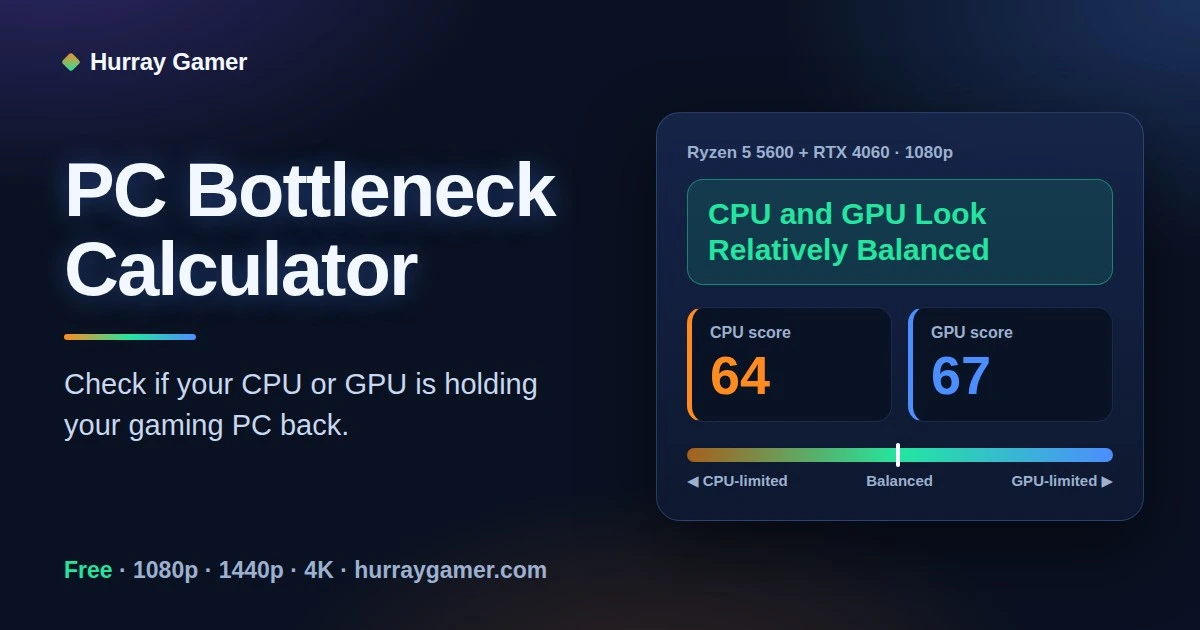
Besides the verdict you get relative reference scores, a balance meter, a recommended resolution and estimated FPS ranges. These are rough estimates, not measured benchmarks, and the tool does not claim an exact bottleneck percentage.
How does this PC bottleneck calculator work?
Every CPU and GPU in the list has a simplified reference score. The bottleneck calculation adjusts the CPU score for your resolution, because higher resolutions put more work on the graphics card, and then compares the two. If the CPU comes out clearly lower, you see a likely CPU bottleneck. If the GPU comes out clearly lower, you see a likely GPU bottleneck. Anything in between is shown as balanced.
Many online tools show one bottleneck percentage. We avoid that on purpose: a single number cannot know your game, settings, drivers or cooling. You get a verdict, the reasoning behind it and checks you can run yourself.
Does resolution change the bottleneck?
Yes. Higher resolution increases the GPU’s workload, so a CPU that limits you at 1080p may be fine at 1440p or 4K. That is why this PC bottleneck calculator asks for your resolution.
| Resolution | What usually limits performance | What it means for you |
|---|---|---|
| 1080p | CPU matters more, especially with a fast GPU | Competitive players on high-refresh monitors need a stronger CPU. |
| 1440p | Usually a mix, leaning toward the GPU | Most mid-range CPUs keep up with a mid-to-high-end GPU. |
| 4K | GPU is almost always the limit | Spend more on the GPU; the CPU matters less. |
CPU, GPU and RAM bottlenecks explained
CPU bottleneck
The processor cannot prepare frames fast enough, so a strong graphics card sits partly idle. It is most visible at 1080p, in esports titles and in simulation or open-world games.
GPU bottleneck
The graphics card is running at its limit while the CPU waits. At high settings and resolutions this is the normal, healthy situation for a gaming PC.
RAM bottleneck
Too little memory, or a single stick running in single-channel mode, can cause stutter and lower 1% lows. 16 GB in dual-channel is a sensible baseline for gaming today. Storage affects loading times far more than FPS.
How to check if your PC is bottlenecked
The calculator is a quick first screen. To confirm a bottleneck on your own PC, test it while you play.
- Install MSI Afterburner or open Task Manager, and show CPU and GPU usage in a demanding game.
- If GPU usage stays well below its maximum while one CPU thread is heavily loaded, the CPU is probably the limit.
- Lower the resolution or graphics quality. If FPS barely changes, the CPU is the limit; if FPS rises a lot, the GPU was.
- Check temperatures and clocks to rule out thermal throttling before you spend money.
How to fix a bottleneck and get better FPS
If the result shows a likely CPU bottleneck, start with these fixes.
- Raise the resolution or graphics quality if the CPU is the limit, so the GPU shares more of the work.
- Close background apps such as browsers with many tabs, launchers and recording tools.
- Enable XMP or EXPO in the BIOS so your RAM runs at its rated speed, and use two memory sticks for dual-channel.
- Update drivers and BIOS (graphics drivers from NVIDIA or AMD), and check that the CPU is not thermal throttling.
- Upgrade the limiting part. Check that a new CPU fits your motherboard socket before buying.
- Use upscaling (DLSS, FSR) when the GPU is the limit and you want more FPS.
To compare graphics card specs, the TechPowerUp GPU database is a useful free reference.
Popular CPU and GPU pairings
Use these common combinations to sanity-check what the PC bottleneck calculator tells you. They are general guidance, so check benchmarks for your exact models and games.
| CPU + GPU | Best for | What to expect |
|---|---|---|
| Ryzen 5 5600 + RTX 3060 | 1080p | Well balanced for 1080p at high settings. |
| Intel Core i5-12400F + RTX 4060 | 1080p, some 1440p | Balanced. At 1440p the GPU is usually the limit, which is fine. |
| Ryzen 5 5600 + RTX 4070 | 1440p | Strong GPU for the CPU. At 1080p in CPU-heavy games the CPU may limit it; 1440p suits it better. |
| Intel Core i3-12100F + RTX 4060 | 1080p | Fine in most esports titles. In CPU-heavy games a mild CPU limit is likely. |
| Ryzen 7 5700X + RTX 4070 Super | 1440p | Good balance for 1440p high settings. |
| Ryzen 5 7600 + RTX 4060 Ti | 1080p to 1440p | Balanced, with room to upgrade the GPU later. |
| Ryzen 5 7600 + RTX 5060 | 1080p to 1440p | Close match; the GPU usually leads at 1440p, which is healthy. |
| Ryzen 7 7800X3D + RTX 5070 Ti | 1440p | Very strong CPU for gaming; at 1440p and above the GPU is the limit. |
PC bottleneck calculator for laptops
You can use this tool for a gaming laptop by choosing the closest CPU and GPU models. Laptop chips often run at lower power limits than desktop parts with a similar name, and cooling affects them more, so treat the verdict as a rough guide.
Most laptop CPUs and GPUs cannot be upgraded later, so the most useful laptop results are the recommended resolution and whether your settings make the GPU the limit.
More free PC tools
Planning a build or an upgrade? After checking your balance, see whether your PC can run a specific game with the Can I Run This Game tool from GamingDon. For guides and gaming news, browse the Hurray Gamer blog.
Complete your gaming setup
Once your CPU and GPU are sorted, the rest of your desk matters for comfort and control. Explore our PC gaming accessories, including the Hurray Gamer large gaming mouse pad: 58 × 28 cm, 3 mm thick, stitched edges and a non-slip rubber base.
Frequently asked questions
What is the best free PC bottleneck calculator?
The best one is honest about its limits. This free tool compares your CPU, GPU and resolution and explains the result in plain language, but no calculator replaces real benchmarks for your exact parts and games.
What is a bottleneck in a PC?
A bottleneck is when one component limits how well another can perform. In gaming it usually means the CPU is too slow to keep a graphics card fed with frames, or the graphics card is at its limit while the CPU waits.
What is the difference between a bottleneck calculator, checker and tester?
They are different names for the same kind of tool. You choose your CPU and GPU, and it estimates which part is likely to limit the other. This page works as a PC bottleneck calculator, CPU GPU bottleneck checker and PC bottleneck tester in one.
How does a PC bottleneck calculator work?
It compares simplified reference scores for the CPU and GPU you select, adjusts for your resolution and workload, and shows which part is likely to limit the other. RAM and storage are shown as separate notes.
Is this PC bottleneck calculator accurate?
It is a quick screening tool, not a benchmark. It cannot know your exact game, settings, drivers, cooling or background apps. Use the result as a starting point, then confirm with benchmarks for your exact parts and by watching usage while you play.
How do I know if my CPU is bottlenecking my GPU?
Play a demanding game and watch usage in MSI Afterburner or Task Manager. If GPU usage stays well below its maximum while the CPU, or one CPU thread, is heavily loaded, the CPU is probably the limit. Raising the resolution should then increase GPU usage.
Will my CPU bottleneck a new graphics card?
Select both parts and your resolution in the calculator. A CPU that is far behind the GPU usually shows as a likely CPU bottleneck, most of all at 1080p. Then check benchmarks for your exact CPU before buying the card.
What is a good bottleneck percentage?
There is no official threshold, and chasing 0% is not realistic. What matters is whether your FPS and GPU usage are acceptable in the games you play. This tool avoids a precise percentage because one number cannot account for the game, settings and drivers.
Is a bottleneck always bad?
No. Every PC has some limiting component. At high settings you want the GPU to be the limit, because that means the graphics card is fully used. A CPU bottleneck is the one worth fixing, because it stops a good GPU from reaching its potential.
Does a higher resolution reduce a CPU bottleneck?
Usually, yes. At 1440p and 4K each frame takes longer for the GPU to render, so the CPU has more time to keep up. At 1080p, especially with a fast GPU, the CPU matters more.
Can RAM or storage cause a bottleneck?
RAM can. 8 GB is tight for many modern games, and single-channel memory can lower performance. 16 GB in dual-channel is a sensible baseline. Storage mostly affects loading times, so an SSD helps over an HDD but will not raise frame rates.
Which matters more for gaming, the CPU or the GPU?
For most games at 1080p and above, the GPU has the bigger effect on FPS. The CPU matters more in competitive high-FPS games, simulation and open-world titles, and when streaming. A balanced pair beats spending everything on one part.
Will upgrading my GPU fix low FPS?
Only if the GPU is the limit. If the CPU already holds the graphics card back, a new GPU may give little or no gain. Check your result and in-game usage first, then decide whether the CPU, GPU or RAM is the better upgrade.
Can I use this PC bottleneck calculator for a laptop?
You can pick the closest CPU and GPU models, but treat the result as less reliable. Laptop chips often run at lower power limits than desktop parts with a similar name, so real performance varies by laptop model and cooling.
How can I fix a CPU bottleneck?
Raise the resolution or graphics quality, close background apps, enable XMP or EXPO, use dual-channel memory, keep the BIOS and drivers updated and make sure the CPU is not thermal throttling. If it still limits a strong GPU, a CPU upgrade on the same socket is the next step.